SprintNAV
Deployment Procedure
Instructions from Jimmy at SAAB on how to deploy the SprintNAV when using USBL aiding.
Now the Sprint-Nav should be setup correct for USBL, so now we start the system and let it align, it is now very important that the time between the USBL system and the system time in the Saab system is correct, so check all PC have same time in the system.
When Sprint-Nav is in Navigation and all looks good, we go to the Control tab in the HMI and click for “INS Use Sensors” USBL.
Now it is time to dive down, and when the Standard Deviation for Latitude and Longitude is getting over 10m or something (trial and error) it is time to send down USBL positions to the Sprint-Nav, to let the deviation increase faster, the DVL input to the sprint-Nav can be turned off, this is done in the Control tab for “INS Use Sensors”.
When USBL is being sent down, the USBL indicator should turn green for a while, look under Navigation->INS for this screen.
This is all theoretcial at the moment as we haven't used it in anger, as of writing this.
Deploy vehicle and dive. The SPRINT-nav requires a USBL input feeding into the SAC and this is provided by survey.
Wait until the standard deviation increase above 10m (deactivate DVL to speed this up if required), select the transponder code for the fitted beacon and then activate 'Send USBL on ethernet'.
The SPRINT-nav is expecting a $PSIMSSB message, when received in the Saab HMI, under Navigation > USBL you will see the Input section populate with a position.
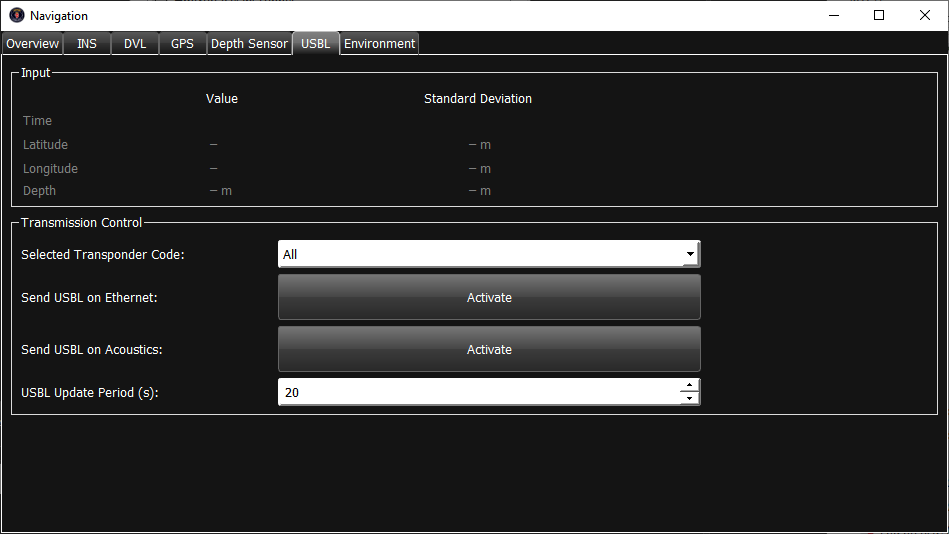
Navigation > USBL Window
To tell the SprintNAV to use the USBL input for aiding, you need to active it in the Control > INS Use Sensors so the LED goes green.
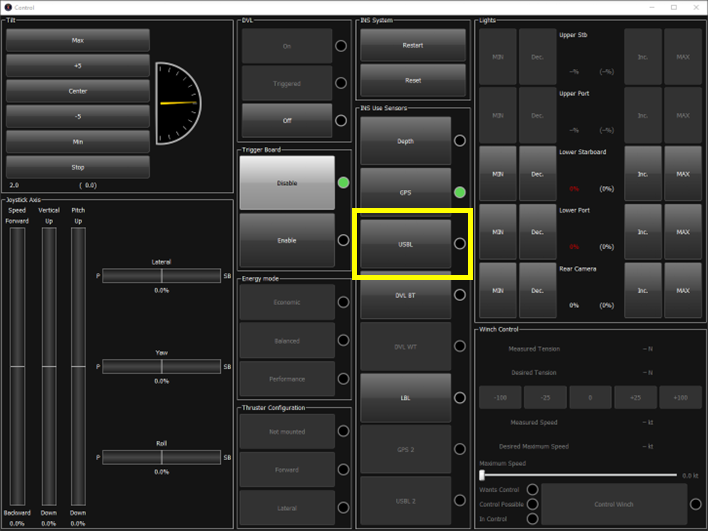
Control Window
Back in the Navigation window you should see the LED for USBL blink in the ‘Sensors In Use’ window, indicating that the message has been received and accepted.
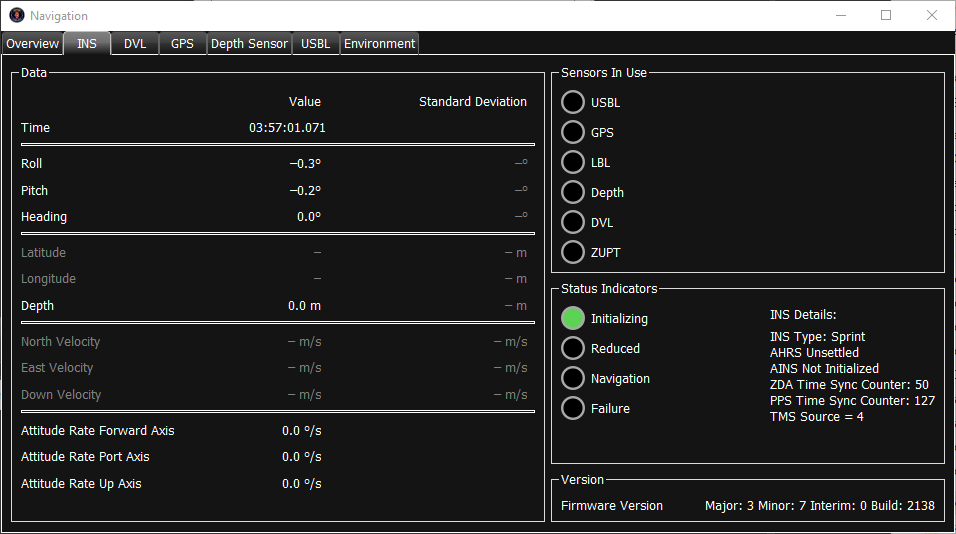
Navigation > INS Window
As noted by Jimmy in his email, time sync between the USBL system and vehicle needs to accurate. As we aren't in control of the survey system, we will have to hope there setup is corrolates with ours and we don't experience any timing issues.
The SprintNAV uses the time in the telegram to calculate the position, it is set with this command: SUSBL TSOURCE TTAG sent from the 'Terminal' tab in the Lodestart Utility.
If we are having issues and no position updates are being accepted you can change how the system treats the time, and use time of arrival of the message using the following command: SUSBL TSOURCE TOA.
If you don't follow this with SYS SAVE FLASH the SptintNAV will revert to its saved configuration on restart.
Connecting to SprintNAV via Lodestar Utility
The Lodestar software is located on the desktop of the RAC.
On the RAC you can connect via serial com 5, baud 115200 8-n-1 (with CARUS closed to free up the com port) or IP 192.168.0.222:4000 (IP preferred).
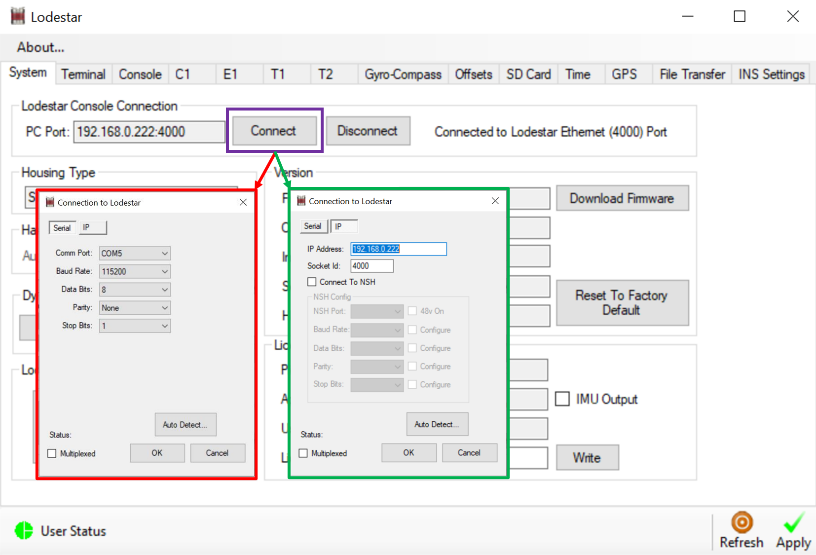
Lodestar Utility
Navigate to the 'Terminal' tab and enter the command SYS LIST to see the current settings.
Beacon ID
To change the beacon ID, navigate to the 'Terminal' tab and enter the command SUSBL TPDR 1 XX, where XX is your beacon code in the USBL telegram from survey. To save changes into the unit memory, send the command SYS SAVE FLASH, otherwise changes will revert after a vehicle restart.
Beacon Offsets
The USBL beacon position, relative to the vehicle CRP, can be calculated from the Sunderland Dimcon and the Saab offset drawing. The Lodestar software contains help and the below image shows the sign conventions used by Sonardyne.
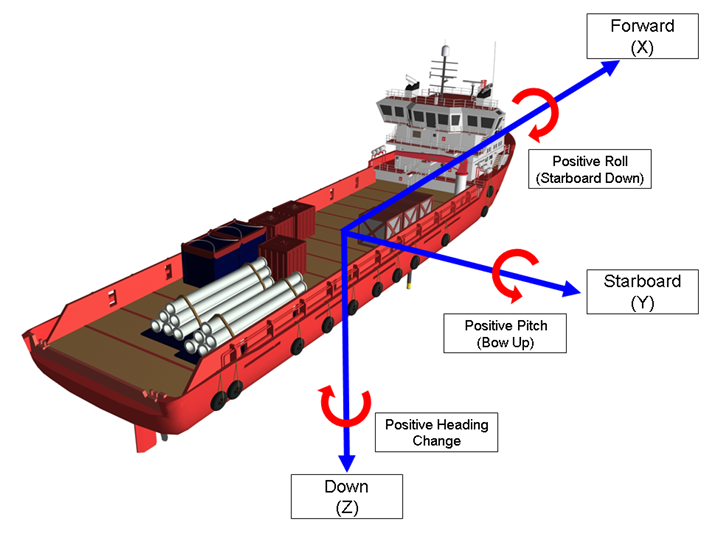
Sonardyne Sign Convention
To update the beacon position, send commmand from the terminal window. Remembering to send SYS SAVE FLASH to save the configuration changes to the unit memory.
SprintNAV Mounting Angles
Once Fadfae have conducted the Dimcon of the vehicle, we will have to update the Motuning angles (C-Os) in the Lodestar Utility.
To update the Mounting angles (C-Os) navigate to the 'Offsets' input the values on the left handside.
- A = Roll
- B = Pitch
- C = Heading
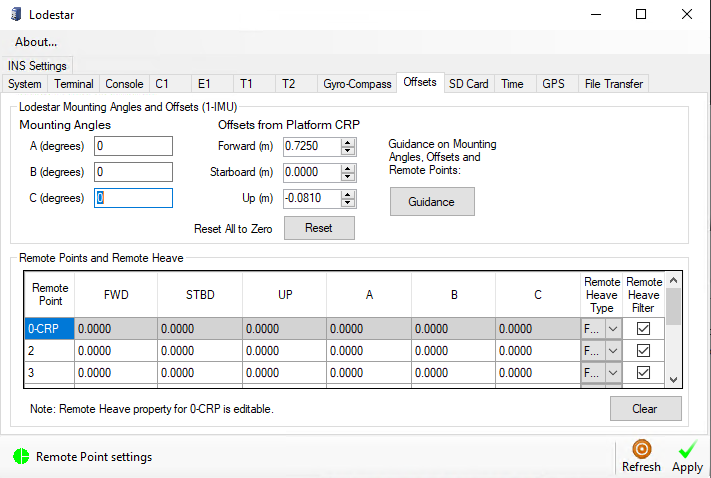
Lodestar Utility
Or you can type it in manually in the terminal window by sending IMU MA R.R P.P H.H, remembering to send SYS SAVE FLASH to save the configuration changes to the unit memory.
SprintNAV Settings Download
Once these items have been updated and saved to emory, download the settings file via the Lodestart Utlity 'System Tab'. Click 'Retrieve from Lodestar', save to a sensible location and send a copy to [email protected].
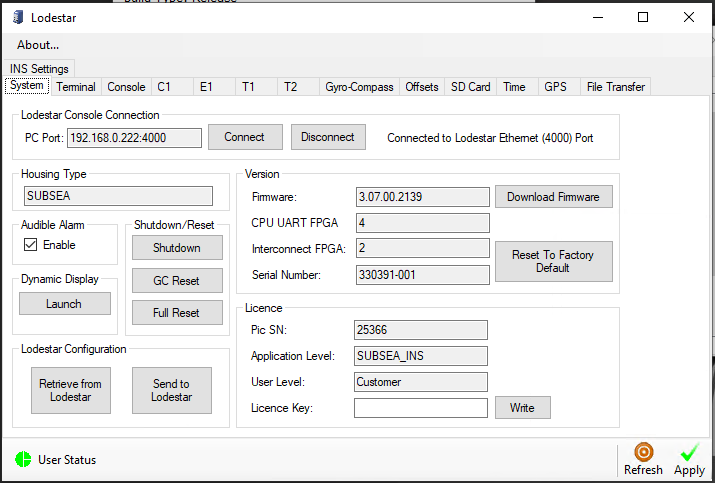
Lodestar Utility
SprintNAV Update Rate
We are currently outputting the LNAV string at 10Hz. If survey want this increased, go to the E1 tab in the LodeStar Utility, select Port 4093 and in the 'Output Messages' pane change the rate to the desired number. Then 'Apply'!
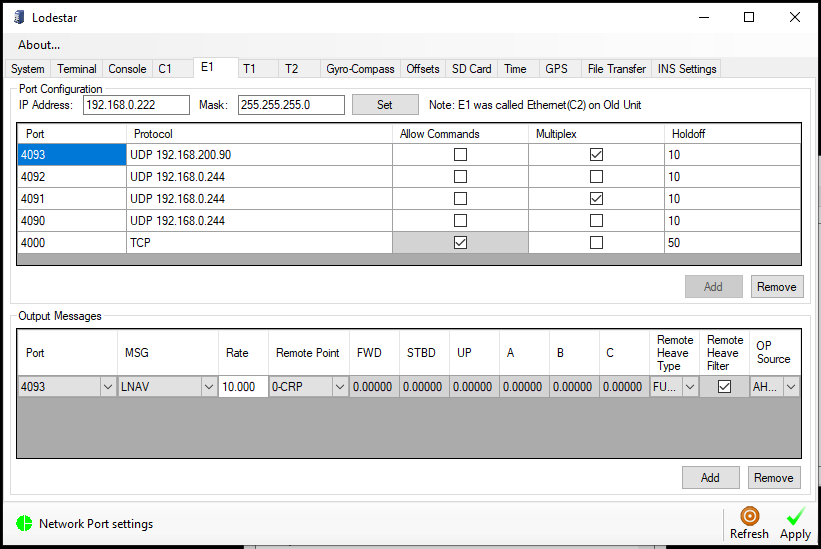
Lodestar Utility